Create and edit Patch Filters
|
|
NOTE: Patch management requires a separate KACE Cloud Secure license for devices managed with a Modern or Co-Managed subscription, while it is included for devices managed with a Companion Edition subscription. |
The Patching Library contains all patches that exist in the KACE Cloud. You can view the details about each patch and mark patches as active or inactive in the Patch Catalog. Use this library to create patch filters based on your specific needs. For example, you can create a Patch Filter that includes app-level patches with a desired severity and associated with specific publisher.
Patch Filters are a set of filters that filter the patch catalog to a specific set or type of patch. They are then linked to a policy where target devices that are associated with that policy will then be patched according to the patches defined by the patch filter.
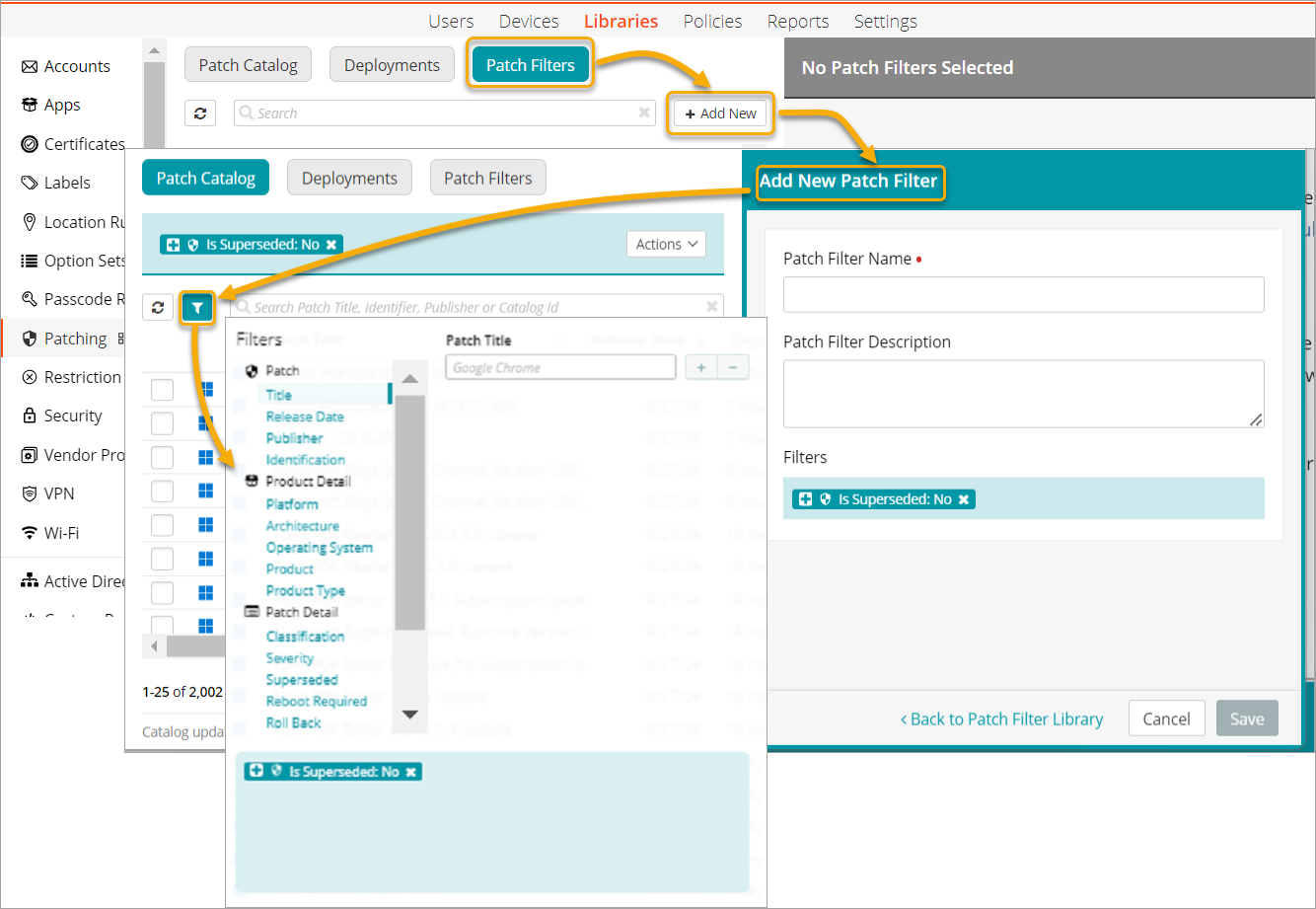
To create or edit a patch filter:
- Select the Libraries tab in top navigation.
- Click the Patching icon.
- To create a new patch filter, on the Patch Filters tab, click Add New.

- To edit an existing patch filter, on the Patch Filters tab, select a patch filter, and in the patch filter view that appears on the right, click Edit.
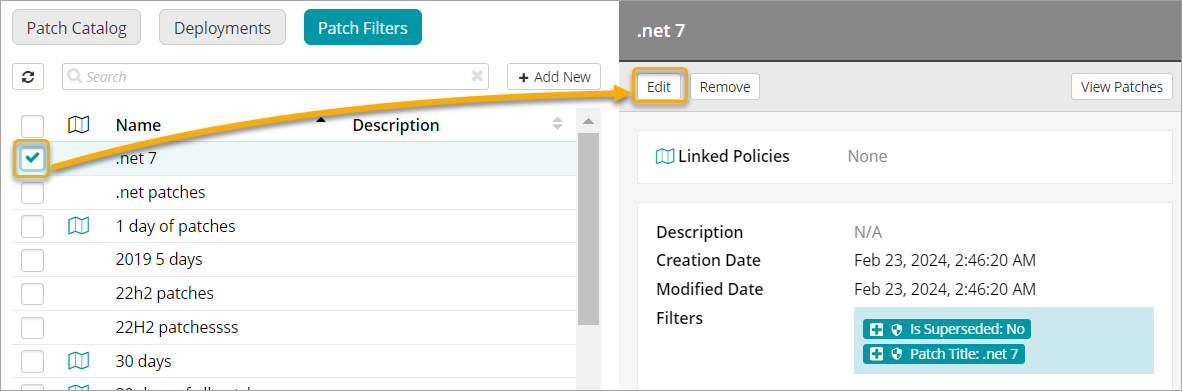
- In the patch filter view that appears on the right, edit the name and description of the patch filter, as applicable.
- In the Filters area, remove any existing patch filters, if needed.
If you are creating a new filter, it already includes all patches that are not superseded.
- On the Patch Catalog tab displayed on the left, click the filter column, and specify the filter settings, as required.
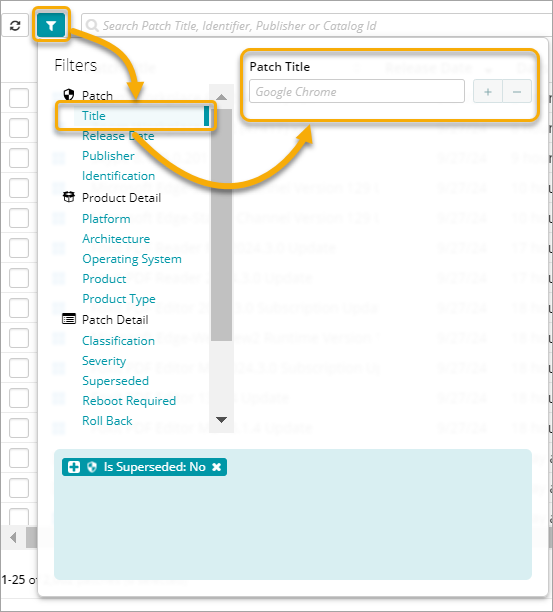
For example, you can create a filter that returns OS-level patches published by Microsoft that are not superseded.

TIP: A superseded patch is a patch that is replaced with the latest version of the same patch. In most cases you do not need to review or apply superseded patches.
- When done, click Save.